 Pagewood
An app blocker for studying that's calm, not cruel
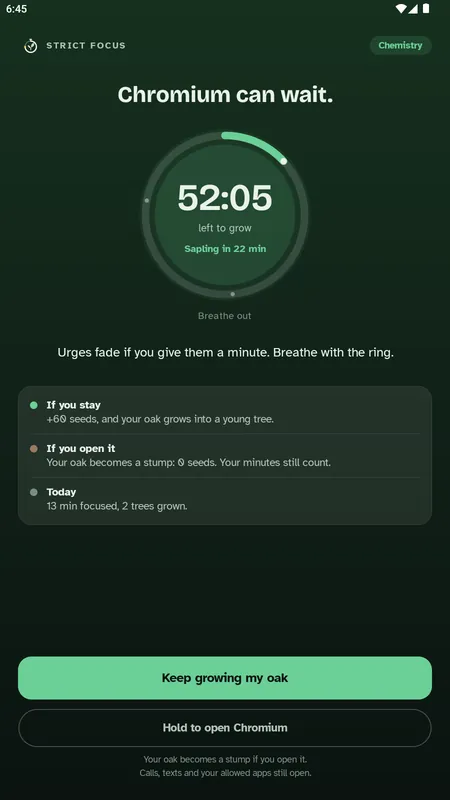
Start a session and every app you haven't allowed shows a quiet page instead: "Instagram can wait." Your time left, your next growth stage and a breathing ring help the urge pass. Calls and texts still work.
How the app blocker works
- Turn on app blocking once. Pagewood walks you through granting Usage access and Display over other apps. It takes about a minute.
- Choose your allowed apps. Keep open what helps you study: notes, a dictionary, your flashcards, your coaching app.
- Plant a Strict session. Pick a length on the growth ruler and start. From now until your tree has grown, other apps show the resting page.
- When the urge comes, breathe. The resting page shows what you'd earn by staying and what happens if you leave. Tap Keep growing and you're back in Pagewood.
Why a calm blocker works better than a harsh one
Most of the time you open Instagram or YouTube during study, it isn't a decision. It's a habit your thumb runs on its own. A blocker that simply refuses feels like a wall, and people uninstall walls. Pagewood's resting page interrupts the habit for a few seconds and gives you the facts: how long until your tree grows, and what you'd give up. That pause is usually enough.
- Breathing ring: urges fade if you give them a minute.
- Clear stakes: "If you stay: +60 seeds and your oak grows into a young tree." "If you open it: your oak becomes a stump."
- Always your choice: hold for 3 seconds to open the app anyway.
What stays open
| Always works | Your choice |
|---|---|
| Phone calls | Any app on your allowed list |
| Text messages (SMS) | Study apps: notes, dictionary, flashcards |
| Home screen | Music, if it helps you focus |
Private by design
To know which app is in front, Pagewood reads it on your phone, in memory, during the session. It never stores a history of the apps you use and never sends it anywhere. Your allowed-apps list is saved on your phone only and is never synced. See how Pagewood handles privacy.
Without the permissions
If you'd rather not grant the two permissions, Strict mode still works as check-on-return: leave the app once and Pagewood forgives it; leave a second time and the tree becomes a stump. Or switch to Gentle mode, where leaving just pauses your tree.
Want to see it first? Watch the 29-second blocking demo.
Questions people ask
How does Pagewood block apps?
During a Strict session, Pagewood checks which app is in front using Android's Usage access. If it isn't on your allowed list, Pagewood shows its resting page over it using Display over other apps. When the session ends, everything opens normally again.
Which permissions does the app blocker need?
Two Android permissions you grant in Settings: Usage access (to see which app is in front) and Display over other apps (to show the resting page). Pagewood does not use the Accessibility service.
Can I still take calls and reply to messages?
Yes. Calls, texts and your home screen always work, and you can add any app you need for studying to your allowed list, such as a dictionary, notes or flashcards.
What if I really need to open a blocked app?
Hold the button for 3 seconds and the app opens. That session's tree becomes a stump, but your focused minutes still count. Pagewood never locks you out of your own phone.
Does the blocker drain my battery?
The blocker runs only while a Strict session is running and only if you have turned on app blocking. When no session is running, nothing runs in the background.
Is the app blocker free?
Yes. Pagewood is free during early access, with no ads and no in-app purchases.
Keep reading
Focus & Study Timer: Pagewood · Android
Plant your next session.
Block distracting apps, grow a tree for every session and keep a field journal of your study. Works offline, no ads, no tracking.

